

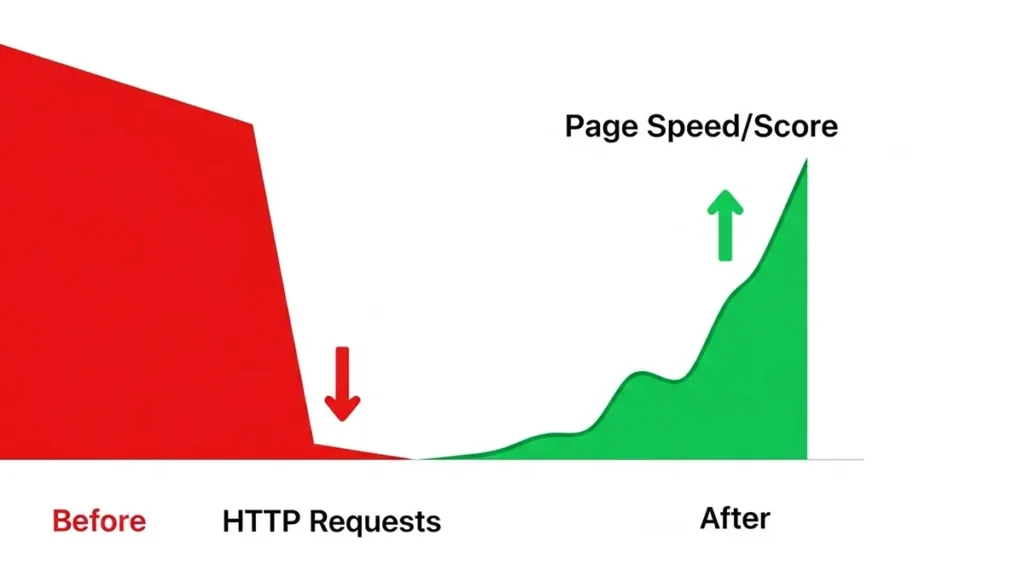
Reducing the number of HTTP requests isn’t just a technical fix; it’s a strategic decision to prioritize speed over visual clutter. Think of it as spring cleaning for your website. We’ll approach this in three phases: Elimination, Consolidation, and Smart Loading.
Phase 1: Elimination – Cutting the Bloat
The first step is always to get rid of anything that doesn’t absolutely need to be there. This is the low-hanging fruit where you delete requests entirely.
1. Remove Unnecessary Plugins & External Scripts
If you’re on a CMS like WordPress, every installed plugin often adds its own CSS and JavaScript files, regardless of whether you use the plugin’s feature on a specific page.
- Actionable Step: Audit your installed plugins. If a plugin is not actively used, deactivate and delete it. If you only use a feature (like a contact form) on one page, explore lighter alternatives or use custom code to prevent the plugin from loading files globally.
- Expert Tip: Pay special attention to social sharing buttons and analytics tracking pixels you no longer need. Each is a separate request.
2. Ditch Decorative Images and GIFs
Every icon, divider line, or small background graphic is an extra HTTP request.
- Actionable Step: Replace small, decorative images with CSS-based alternatives (like border styling, background gradients, or shadows) or use SVG code directly within your HTML.
- The GIF Rule: Convert animated GIFs to modern, compressed formats like
<video>elements or Lottie/JSON animations. This reduces file size and can remove unnecessary requests compared to old GIF implementations.
3. Cull Unused CSS and JavaScript
Over time, themes and plugins leave behind “dead” code that still loads.
- Actionable Step: Use auditing tools (like Chrome DevTools Coverage tab or specialized plugins) to identify CSS and JS files where less than 10% of the code is actually used on a given page. Remove or consolidate these files.
- The Human Nuance: This is often the hardest part, as you risk breaking functionality. Always test thoroughly after removing or reducing code.
Before moving ahead, Explore my free tool to find how much revenue you’re loosing on slow loading.
Phase 2: Consolidation – Merging Files for Efficiency
If you can’t eliminate the file, you can often combine it with another file, turning multiple requests into one request.
4. Combine CSS and JavaScript Files (Concatenation)
If your site loads ten different small CSS files, the browser has to request them individually.
- Actionable Step: Concatenate (merge) all your necessary CSS files into one large
style.cssfile, and merge all your necessary JavaScript files into one largescripts.jsfile. - How to do this:
- CMS Users: Use optimization plugins (like WP Rocket, Autoptimize, or similar tools for other platforms) that have a “Combine CSS/JS” feature.
- Custom Sites: Use build tools like Webpack, Parcel, or Gulp to automate the concatenation process before deployment.
5. Utilize CSS Sprites for Icons
If your website uses many small icons like social media icons, arrows, and navigation elements, each is a separate request.
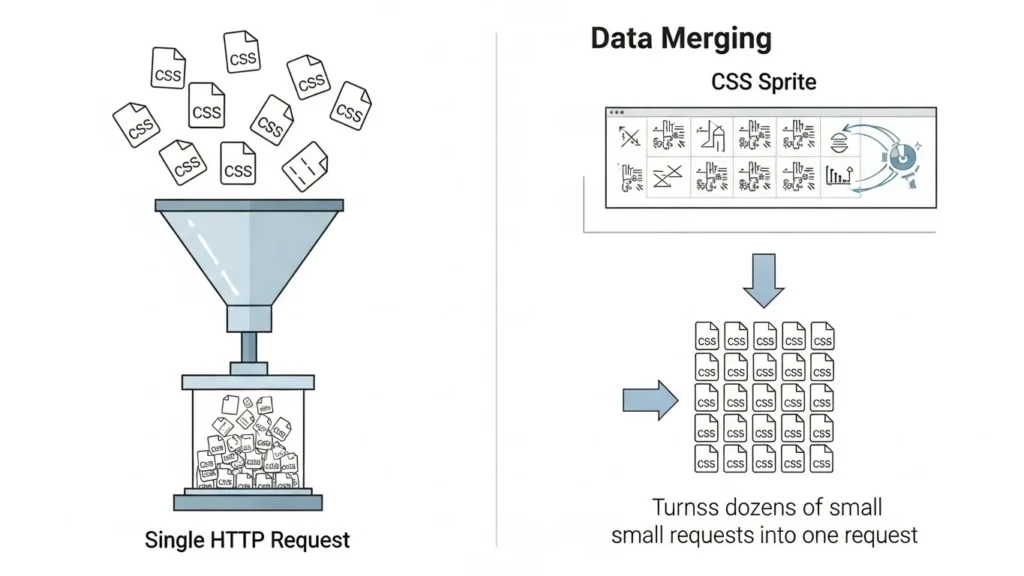
- Actionable Step: Create a CSS Sprite—a single large image file that contains all your small icons. Then, use CSS background positioning (
background-positionproperty) to display only the specific part of the image needed for each icon. - Benefit: This turns dozens of small icon requests into a single HTTP request for the sprite image.
6. Embed Small Files Directly (Inline)
For tiny, critical files (like the CSS needed to render the very top of the page, or small, critical SVG logos), you can embed the code directly into the HTML.
- Actionable Step: Take the raw CSS code for the “above-the-fold” content (critical CSS) and place it within
<style>tags in the HTML<head>. Similarly, small SVG icons can be placed directly in the HTML. - Reasoning: This avoids the external file request altogether, ensuring those critical elements load immediately.
Phase 3: Smart Loading – Delaying the Non-Essential
Not everything needs to load right away. By delaying the requests for non-critical assets, you prioritize the visible content (the content the user sees first).
7. Implement Lazy Loading for Images and Media
This is the most effective request reduction technique for image-heavy pages.
- Actionable Step: Configure your site so that images only load when they are about to enter the user’s viewport (as the user scrolls). Images placed far down the page are not requested until needed.
- How to do this:
- HTML: Use the native HTML attribute:
<img loading="lazy" src="image.jpg" alt="...">(Modern browsers widely support this). - CMS Users: Use optimization plugins; most now offer simple toggle switches for “Lazy Load Images.”
- HTML: Use the native HTML attribute:
8. Defer Non-Critical JavaScript
Scripts that aren’t needed for the initial render (e.g., pop-ups, social media widgets, contact form validation) can be delayed.
- Actionable Step: Add the
deferorasyncattributes to your non-essential external<script>tags.defer: Tells the browser to download the script in the background but execute it only after the HTML is fully parsed.async: Tells the browser to execute the script immediately after download, potentially before the HTML is fully parsed. (Usedefermore often, as it’s less likely to block rendering.)
9. Replace Web Fonts with System Fonts
Web fonts (like Google Fonts or custom fonts) often add multiple HTTP requests (one for the CSS file, then one for each weight/style/format).
- Actionable Step: Use system fonts that are already installed on the user’s computer (e.g., Arial, Georgia). If you must use a web font, be selective—only load the weights you absolutely need (e.g., 400 and 700) and ensure they are self-hosted with the correct
font-display: swap;property to prioritize text rendering.
By meticulously going through these three phases like Elimination, Consolidation, and Smart Loading, you will actively and hugely reduce the number of HTTP requests, that make your site feel instantly faster.
Find how much revenue your Website is loosing on slow loading.